How to Track PTO Accruals and Balances Without Manual Spreadsheets



It usually happens the same way. A payroll manager pulls up a spreadsheet two days before a pay run, finds three formulas that broke when someone inserted a row, and now has to manually reconcile PTO balances for 40 field employees before the deadline. Or worse, an employee disputes their vacation balance, and nobody can produce a clear record of when hours were earned, used, or adjusted.
For construction businesses running multiple crews across job sites, sometimes across state lines, PTO tracking in spreadsheets is not just inconvenient. It is a liability. A missed accrual, a stale formula, or a balance nobody can audit creates payroll errors, compliance exposure, and employee distrust.
This article walks through what automated PTO tracking looks like in practice: how accruals are calculated, how balances stay accurate without manual updates, how corrections are logged for audit purposes, and how PTO data flows into timesheets, payroll, and payouts.
Whether you are evaluating a system change or just trying to understand what "automated PTO tracking" actually means day-to-day, this covers the practical mechanics.
Key Takeaways
- Spreadsheet-based PTO tracking breaks down because formulas are manual, there is no audit trail, and balances are disconnected from actual payroll runs.
- Automated accrual can run all at once (a lump sum credited on a set date) or progressively throughout the year, and can be based on a fixed amount or hours worked.
- Tenure-based accrual rates let PTO earning increase as employees stay longer, without needing separate spreadsheets per tenure bracket.
- A proper PTO policy setup follows a clear order: tenure configuration (optional), leave category, then the leave policy configuration that holds the actual accrual and carryover rules.
- Every balance change, whether from accrual, an import, or a manual adjustment, should be timestamped, attributed to an admin, and reversible rather than deletable.
- PTO should connect directly to timesheets and payroll exports so worked hours and time-off hours do not have to be reconciled by hand.
- PTO payouts for unused balances need to flow into payroll and paystubs as a distinct, clearly labeled line item, including separate rules for union fringe eligibility where applicable.
Why Spreadsheets Break Down for Construction PTO Tracking
Spreadsheets were not built for a workforce that moves between job sites, works variable hours, and includes employees under different leave policies, tenure brackets, and sometimes union agreements.
A few specific failure points show up repeatedly in construction payroll:
- Formulas break silently. A copied row, a deleted column, or a manual override can throw off an accrual calculation without anyone noticing until an employee's balance looks wrong.
- No real audit trail. When someone edits a cell, there is no record of who changed it, when, or why. If a regulator or an employee questions a balance, there is nothing to point to.
- Disconnection from payroll. A spreadsheet does not know when a payroll run happened or what hours were actually worked. Balances get updated after the fact, if at all.
- No visibility for employees. Workers cannot see their own accrued PTO in real time, which increases disputes and time-off requests that exceed what is actually available.
- Tenure and policy changes are manual. When an employee crosses a tenure bracket, someone has to remember to update their accrual rate manually, and that step is easy to miss.
Common Mistakes to Watch For
- Forgetting to update accrual rates when an employee crosses a tenure threshold.
- Applying PTO adjustments in the middle of an active payroll run, which complicates reconciliation.
- Treating a spreadsheet edit as equivalent to a logged adjustment, with no reason or approval trail.
- Losing track of carryover caps, so unused PTO either rolls over incorrectly or is forfeited without documentation.
What Automated PTO Accrual Looks Like
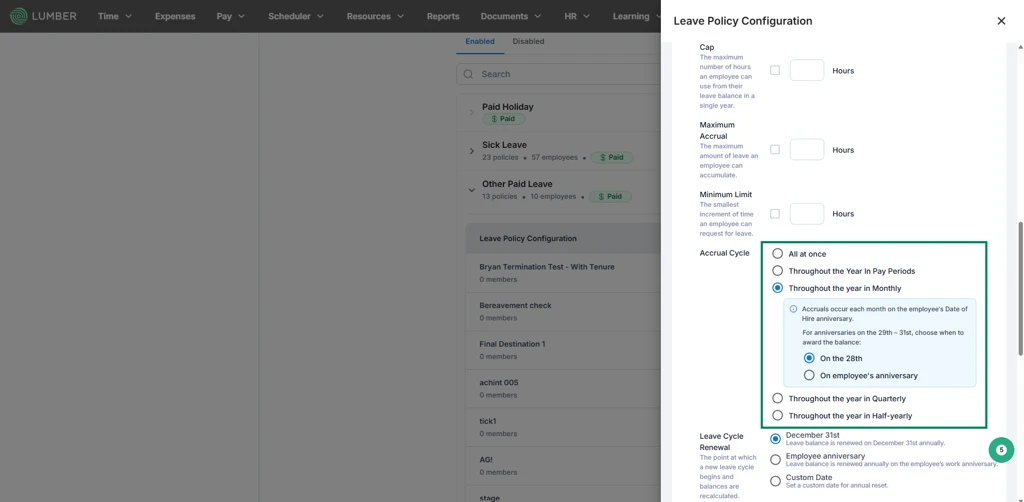
Automated accrual replaces manual formulas with a configured policy that runs consistently for every employee assigned to it. There are two main accrual methods.
All at Once. Employees receive their full annual PTO entitlement in a single credit cycle. This can be configured to occur at the start of the year, the end of the year, or on the employee's work anniversary. For example, an employee with a 40-hour annual entitlement receives all 40 hours on January 1.
Throughout the Year. PTO is earned gradually based on a defined frequency, such as weekly, biweekly, or monthly. An employee with a 40-hour annual entitlement earns roughly 3.33 hours per month under this method.
Each accrual configuration also determines:
- Whether leave is earned on a fixed basis or an hourly-worked basis
- When it is credited (start of year, end of year, or continuously)
- Maximum balance limits, after which accrual pauses until the balance drops
- Carryover rules, including whether unused time rolls into the next cycle and any cap on that rollover
- Minimum balance and minimum request limits, such as requiring an employee to retain a minimum number of hours or apply for leave in set increments
Tenure-Based Accrual Rates
Accrual rates often need to increase with tenure. A newer employee might earn PTO at a slower rate than someone with three or more years of service. Rather than tracking this manually per employee, a tenure configuration lets you define brackets (for example, 0 to 12 months, 13 to 36 months, 37-plus months) and assign different accrual rates, maximum balances, and carryover caps to each bracket.
The table below compares the two core accrual methods so you can decide which fits a given policy.
Neither method is universally better. All-at-once suits companies that want simplicity and employees who value knowing their full balance up front. Throughout-the-year accrual suits companies that want PTO tied more closely to actual time worked, which can matter for part-time or variable-schedule field employees.
Setting Up a PTO Policy Correctly From the Start
Getting the setup sequence right avoids having to stop and create missing pieces halfway through. The recommended order is:
- Tenure configuration (optional). Skip this if every employee on the policy should accrue the same way regardless of how long they have worked at the company. If accrual should vary by service length, set up tenure brackets first, in ascending, non-overlapping order, measured in months rather than years.
- Leave category. Every policy is nested under a category. Most companies already have default categories such as Paid Vacation, Sick Leave, Unpaid Vacation, and Unpaid Sick Leave, so a custom category is only needed for leave types that those do not cover.
- Leave policy configuration. This is where the accrual rate, probation rules, renewal timing, carryover, negative balance handling, and payout rules actually live, nested under the category and optionally tied to the tenure brackets from step one.
- Assign the policy to employees. A configured policy has no effect until it is attached to specific people.
Why Getting Tenure Brackets Right Matters
Tenure brackets should be set up before the leave policy configuration step, not during it. That way, when you get to defining accrual rates, the correct brackets already exist to choose from. Editing bracket ranges later only affects future accruals. It does not retroactively change balances employees have already earned, which protects against unintended payroll corrections.
PTO Policy Setup Checklist
- Decide whether tenure-based rates are needed, or whether one flat rate applies to everyone.
- If using tenure, define brackets in ascending order with no gaps or overlaps.
- Confirm which leave category the policy belongs to, using a default category where possible.
- Set the accrual method (all at once or throughout the year) and the amount or rate.
- Define maximum accrual, minimum balance, and carryover caps.
- Assign the finished policy to the relevant employees.
How Real-Time Balance Tracking Replaces the Spreadsheet
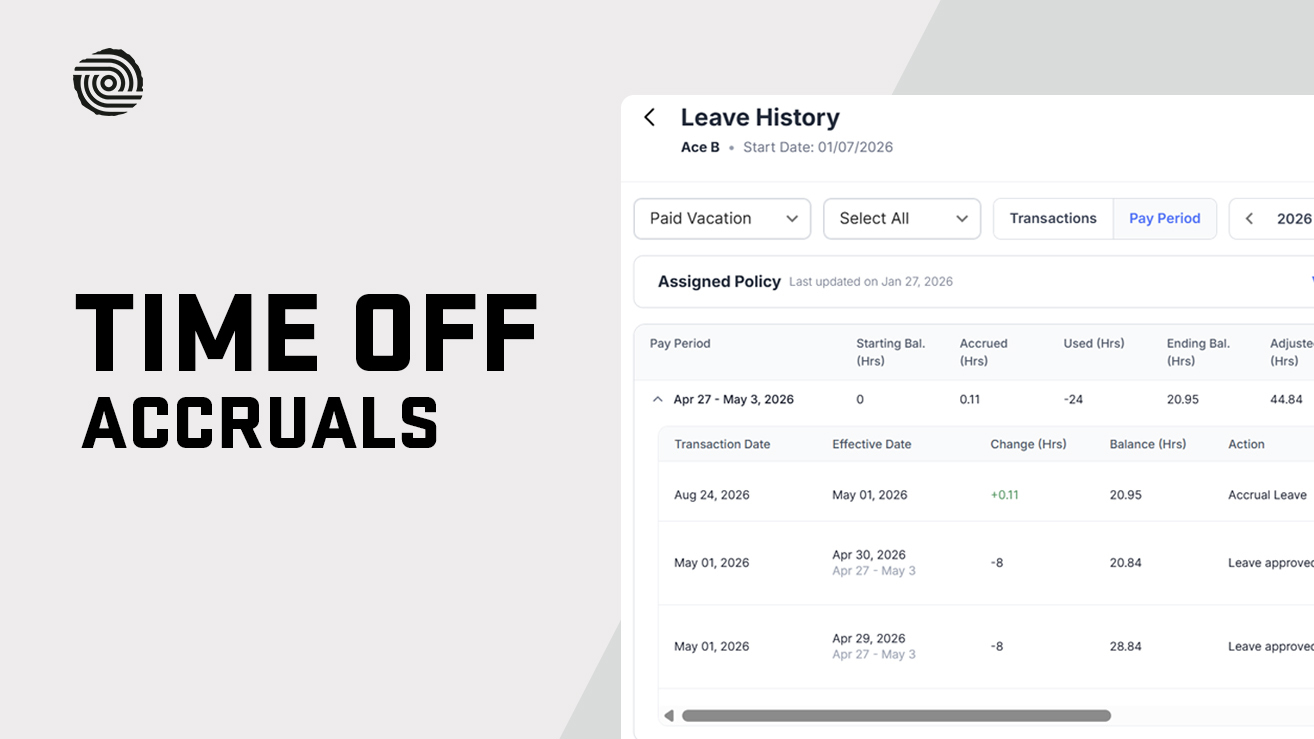
Once a policy is active, every change to an employee's PTO balance, whether from automatic accrual, a bulk import, or a manual adjustment, should be recorded in a single, viewable history rather than scattered across spreadsheet versions.
A useful PTO history view shows, for each entry:
- The transaction date
- The change in hours (added or deducted)
- The updated balance after the change
- The action type (accrual, manual adjustment, or imported leave)
- Which admin made the change and when
- The reason provided, or a system-generated reason for automatic actions
This history should also be filterable by leave category, such as Paid Vacation, Paid Sick Leave, or Paid Bereavement, so an admin can isolate exactly the records they need for an audit or a payroll question. Bulk imports, such as loading opening balances for a new client or correcting a batch of records, should show up in this same history immediately, tagged with the upload timestamp and the admin who performed it.
This is the direct replacement for a spreadsheet: instead of trusting that a formula updated correctly, an admin can see exactly what happened to a balance and when, with no separate reconciliation step.
Making Corrections Without Losing the Audit Trail
Even with automated accrual, corrections are sometimes necessary. Maybe an opening balance was imported incorrectly, a new hire needs prior service credit, or a policy change requires a one-time adjustment. The key difference between this and editing a spreadsheet cell is traceability.
A proper adjustment process requires:
- Specifying the PTO type being adjusted
- Entering a positive value to add hours or a negative value to deduct them
- Providing a reason or comment, which is required for audit tracking
- Saving the change so it instantly updates the balance across payroll, paystubs, and reporting
Adjustments should never disappear. Rather than allowing deletion, the correct approach is to reverse an adjustment by applying an equal and opposite entry. This keeps the full history intact, including the original mistake and the correction, which matters if the balance is ever questioned later.
Common Mistakes to Avoid With Adjustments
- Applying adjustments during an active payroll run, which complicates reconciliation. Adjustments made outside of active payroll cycles are easier to verify.
- Skipping the reason field, which undermines the audit trail the whole point of moving off spreadsheets is meant to create.
- Assuming a maximum accrual cap will block an oversized manual entry. Automatic accrual pauses at the cap, but manual adjustments and admin-entered leave are not automatically capped, so they require manual review.
Connecting PTO to Timesheets and Payroll
PTO tracking is only as useful as its connection to the rest of payroll. Two things matter here: how PTO gets recorded alongside actual hours worked, and how that combined data gets exported for review or payroll processing.
Admins can add PTO directly onto a specific day in an employee’s timesheet, provided the employee already has a leave configuration assigned. This keeps worked hours and time-off hours together in one place, and PTO entered this way is automatically approved rather than sitting in a separate approval queue that could delay payroll.
For reporting and recordkeeping, worked hours and PTO hours can be exported together into a single file, rather than requiring two separate reports that then need to be manually merged. This export adds dedicated PTO rows for any day PTO was taken, plus PTO category and hours columns, so both paid and unpaid leave are clearly labeled side by side with regular work hours.
Use the standard worked hours export when you only need attendance data. Use the combined export when you need to reconcile payroll against leave taken, since it removes the manual step of merging two separate files.
Handling PTO Payouts for Unused Balances
Some companies pay out unused PTO rather than letting it carry over or expire, whether at year-end, upon termination, or by policy. This needs to flow cleanly into payroll rather than becoming another manual calculation.
A payout request typically requires selecting the employee, choosing the reason for the payout, entering the number of hours, and adding any relevant notes. Once processed, the payout should appear on the paystub and pay register as a distinct line item, labeled by leave category (for example, “Vacation – Payout”), so it is not mistaken for a regular hours-worked entry.
For union workforces, fringe eligibility on PTO payouts is often a separate setting from fringe eligibility on regular leave. Since payouts are not tied to a specific project, any applicable fringes typically use home union rates by default, and this eligibility usually defaults to off until an admin turns it on for a given union.
What to Look for in a PTO Tracking System
If you are evaluating a move away from spreadsheets, look for a system that covers these basics:
- Real-time sync with payroll. Balances should update automatically as accruals, timesheets, and adjustments occur, not on a manual schedule.
- Full audit logging. Every change should be timestamped and attributed to a specific user, with adjustments reversible rather than deletable.
- Configurable accrual rules. Support for both accrual methods, tenure-based rates, maximum balances, and carryover caps, without requiring a new spreadsheet template for each variation.
- Combined timesheet and PTO views. The ability to see and export worked hours and PTO hours together, rather than reconciling two separate systems.
- Payout handling. A structured way to process unused PTO payouts that flows directly into paystubs and payroll reports.
- Employee visibility. Workers should be able to see their own accrued balance and history without submitting a request to HR.
Frequently Asked Questions
Can a PTO adjustment be deleted after it has been saved?
No. Adjustments are intentionally not deletable, since removing one would erase part of the audit trail. Instead, an equal and opposite entry is applied to reverse it. Both the original adjustment and the reversal remain visible in the employee’s history, which preserves a complete record for compliance and internal review.
Does PTO continue to accrue during unpaid leave or inactive periods?
No. PTO accrual generally only applies during active employment periods where hours are worked or payroll runs occur. If an employee is on unpaid leave or otherwise inactive, accrual pauses for that period and resumes once they return to active status.
Can worked hours and PTO hours be exported in a single file?
Yes. A combined export option adds dedicated PTO rows and category columns to the standard worked-hours export, so both types of hours appear together without needing to merge separate reports manually. This option typically requires custom leave types to be enabled for the company first.
Can accrual rates change based on how long an employee has worked at the company?
Yes. Tenure-based accrual lets a policy apply different rates, maximum balances, or carryover caps depending on which tenure bracket an employee falls into, such as 0 to 12 months versus 37-plus months. Brackets should be configured in ascending, non-overlapping order for the system to apply the correct rate automatically.
Are PTO balance changes visible to employees, or only to administrators?
Both. Adjustments, accruals, and imported balances are visible to employees in their own PTO history, in addition to being visible to administrators. This transparency reduces disputes, since employees can see exactly why their balance changed rather than only being told the final number.
What happens if an employee’s balance would exceed the maximum accrual cap?
Automatic accrual pauses once an employee reaches the configured maximum, and resumes once the balance drops below that cap. However, this cap does not automatically block manually entered leave or PTO adjustments, so an admin could still push a balance above the maximum through a manual entry. These are two separate mechanisms and should not be assumed to behave identically.
Final Thoughts
Spreadsheet-based PTO tracking tends to fail quietly, through a broken formula, a missed tenure update, or a balance nobody can explain when it is questioned. The fix is not a better spreadsheet template. It is moving accrual, adjustments, timesheets, and payouts into one connected system where every change is calculated automatically and logged for anyone who needs to review it later.
If you are still managing PTO manually, a reasonable next step is to audit your current process: identify where balances are calculated by hand, where the audit trail breaks down, and where PTO data has to be manually reconciled against payroll. From there, define your policy structure, including accrual methods and tenure brackets, before evaluating a system to run it in.
Lumber’s PTO accrual, adjustment, and reporting tools are built to handle this end to end, from automated accrual and tenure-based rates to a full audit history and combined timesheet exports, so payroll teams are not left rebuilding the same spreadsheet every pay period.
Meta Title: How to Track PTO Accruals and Balances Without Spreadsheets
Meta Description: Learn how construction businesses can automate PTO accrual, balance tracking, and payouts, replacing error-prone spreadsheets with real-time, auditable records.
Lorem ipsum dolor sit amet, consectetur adipiscing elit. Donec ullamcorper mattis lorem non. Ultrices praesent amet ipsum justo massa. Eu dolor aliquet risus gravida nunc at feugiat consequat purus. Non massa enim vitae duis mattis. Vel in ultricies vel fringilla.
Introduction
Mi tincidunt elit, id quisque ligula ac diam, amet. Vel etiam suspendisse morbi eleifend faucibus eget vestibulum felis. Dictum quis montes, sit sit. Tellus aliquam enim urna, etiam. Mauris posuere vulputate arcu amet, vitae nisi, tellus tincidunt. At feugiat sapien varius id.
Eget quis mi enim, leo lacinia pharetra, semper. Eget in volutpat mollis at volutpat lectus velit, sed auctor. Porttitor fames arcu quis fusce augue enim. Quis at habitant diam at. Suscipit tristique risus, at donec. In turpis vel et quam imperdiet. Ipsum molestie aliquet sodales id est ac volutpat.


Ipsum sit mattis nulla quam nulla. Gravida id gravida ac enim mauris id. Non pellentesque congue eget consectetur turpis. Sapien, dictum molestie sem tempor. Diam elit, orci, tincidunt aenean tempus. Quis velit eget ut tortor tellus. Sed vel, congue felis elit erat nam nibh orci.

Dolor enim eu tortor urna sed duis nulla. Aliquam vestibulum, nulla odio nisl vitae. In aliquet pellentesque aenean hac vestibulum turpis mi bibendum diam. Tempor integer aliquam in vitae malesuada fringilla.
Elit nisi in eleifend sed nisi. Pulvinar at orci, proin imperdiet commodo consectetur convallis risus. Sed condimentum enim dignissim adipiscing faucibus consequat, urna. Viverra purus et erat auctor aliquam. Risus, volutpat vulputate posuere purus sit congue convallis aliquet. Arcu id augue ut feugiat donec porttitor neque. Mauris, neque ultricies eu vestibulum, bibendum quam lorem id. Dolor lacus, eget nunc lectus in tellus, pharetra, porttitor.
Ipsum sit mattis nulla quam nulla. Gravida id gravida ac enim mauris id. Non pellentesque congue eget consectetur turpis. Sapien, dictum molestie sem tempor. Diam elit, orci, tincidunt aenean tempus. Quis velit eget ut tortor tellus. Sed vel, congue felis elit erat nam nibh orci.
Mi tincidunt elit, id quisque ligula ac diam, amet. Vel etiam suspendisse morbi eleifend faucibus eget vestibulum felis. Dictum quis montes, sit sit. Tellus aliquam enim urna, etiam. Mauris posuere vulputate arcu amet, vitae nisi, tellus tincidunt. At feugiat sapien varius id.
Eget quis mi enim, leo lacinia pharetra, semper. Eget in volutpat mollis at volutpat lectus velit, sed auctor. Porttitor fames arcu quis fusce augue enim. Quis at habitant diam at. Suscipit tristique risus, at donec. In turpis vel et quam imperdiet. Ipsum molestie aliquet sodales id est ac volutpat.
Mi tincidunt elit, id quisque ligula ac diam, amet. Vel etiam suspendisse morbi eleifend faucibus eget vestibulum felis. Dictum quis montes, sit sit. Tellus aliquam enim urna, etiam. Mauris posuere vulputate arcu amet, vitae nisi, tellus tincidunt. At feugiat sapien varius id.
Eget quis mi enim, leo lacinia pharetra, semper. Eget in volutpat mollis at volutpat lectus velit, sed auctor. Porttitor fames arcu quis fusce augue enim. Quis at habitant diam at. Suscipit tristique risus, at donec. In turpis vel et quam imperdiet. Ipsum molestie aliquet sodales id est ac volutpat.
- Lectus id duis vitae porttitor enim gravida morbi.
- Eu turpis posuere semper feugiat volutpat elit, ultrices suspendisse. Auctor vel in vitae placerat.
- Suspendisse maecenas ac donec scelerisque diam sed est duis purus.
Lectus leo massa amet posuere. Malesuada mattis non convallis quisque. Libero sit et imperdiet bibendum quisque dictum vestibulum in non. Pretium ultricies tempor non est diam. Enim ut enim amet amet integer cursus. Sit ac commodo pretium sed etiam turpis suspendisse at.
Tristique odio senectus nam posuere ornare leo metus, ultricies. Blandit duis ultricies vulputate morbi feugiat cras placerat elit. Aliquam tellus lorem sed ac. Montes, sed mattis pellentesque suscipit accumsan. Cursus viverra aenean magna risus elementum faucibus molestie pellentesque. Arcu ultricies sed mauris vestibulum.

Critical Construction Compliance | Awareness Week
Mar 16, 2026
Apr 15, 2026
Nov 30, 2026
Dec 15, 2026
Essential resources for contractors