



Crew Management Made Simple
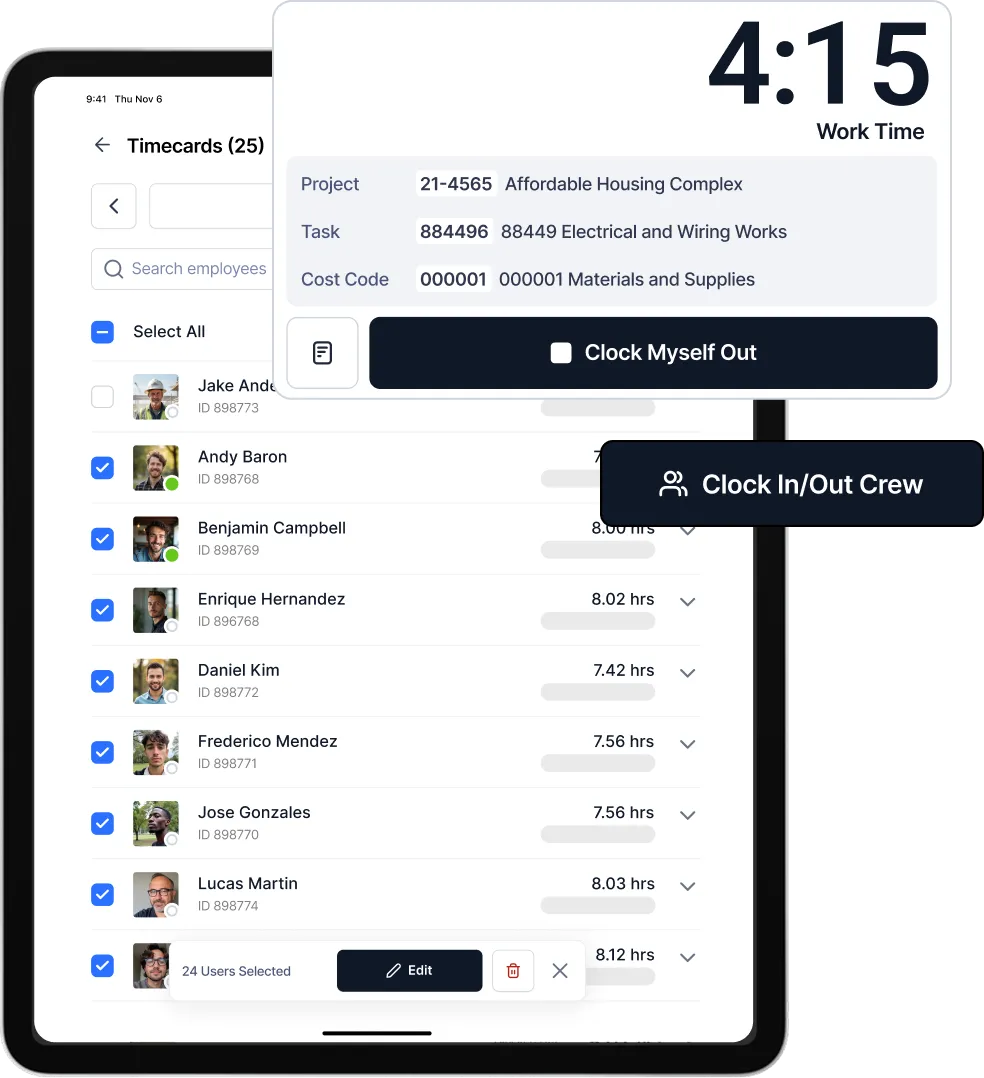
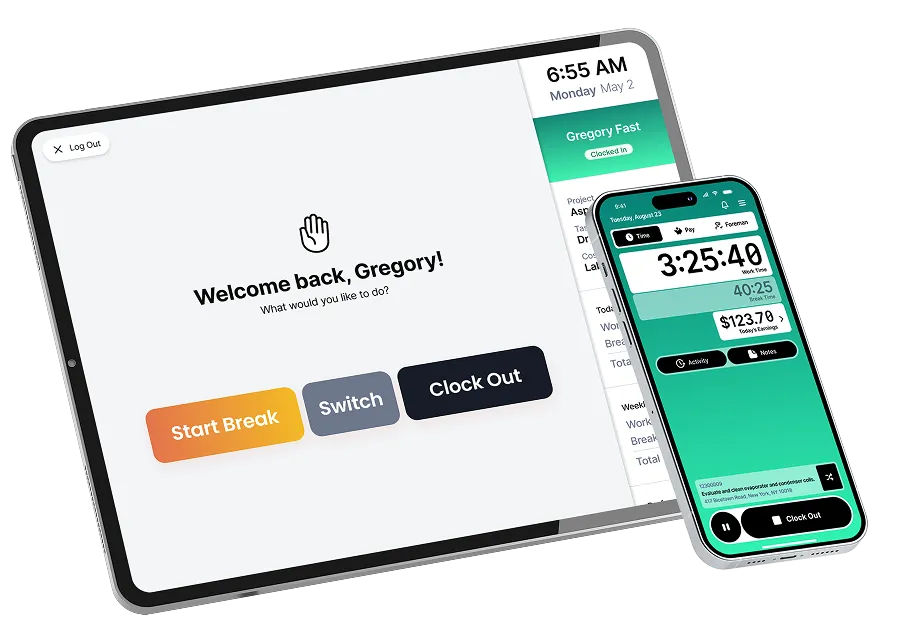
Give foremen full control to clock in, manage, and track their entire crew, all from a single mobile device or tablet, right from the field.
PIN-Based Crew Clock-In
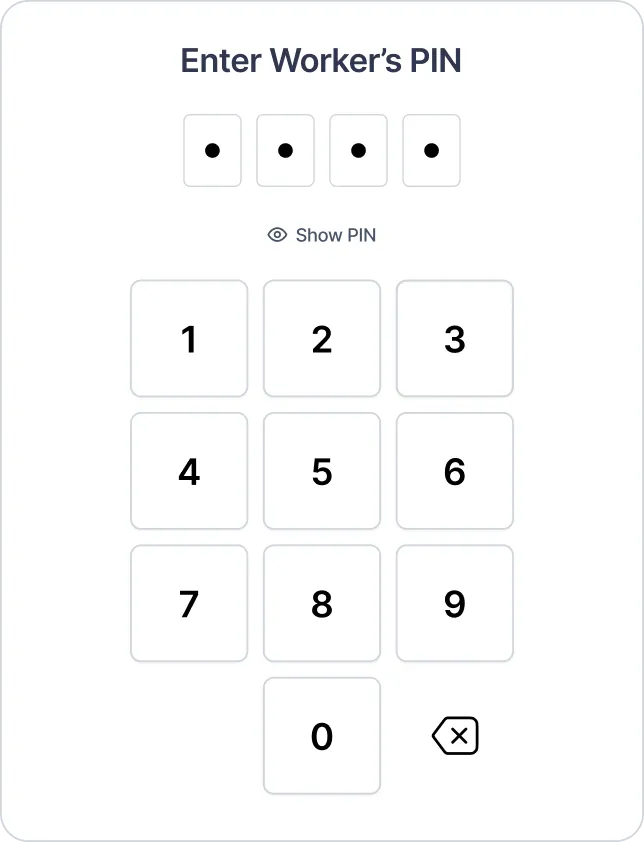
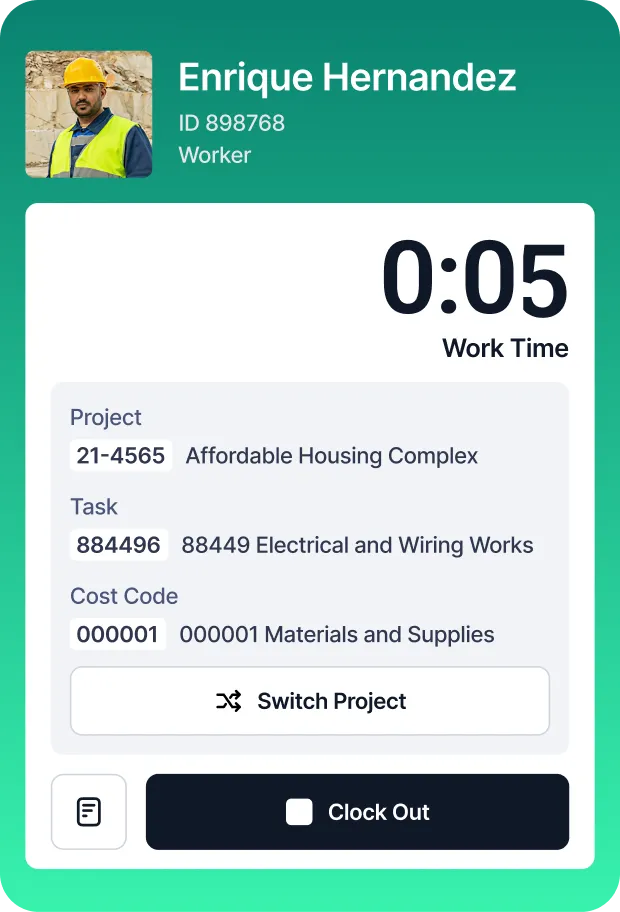
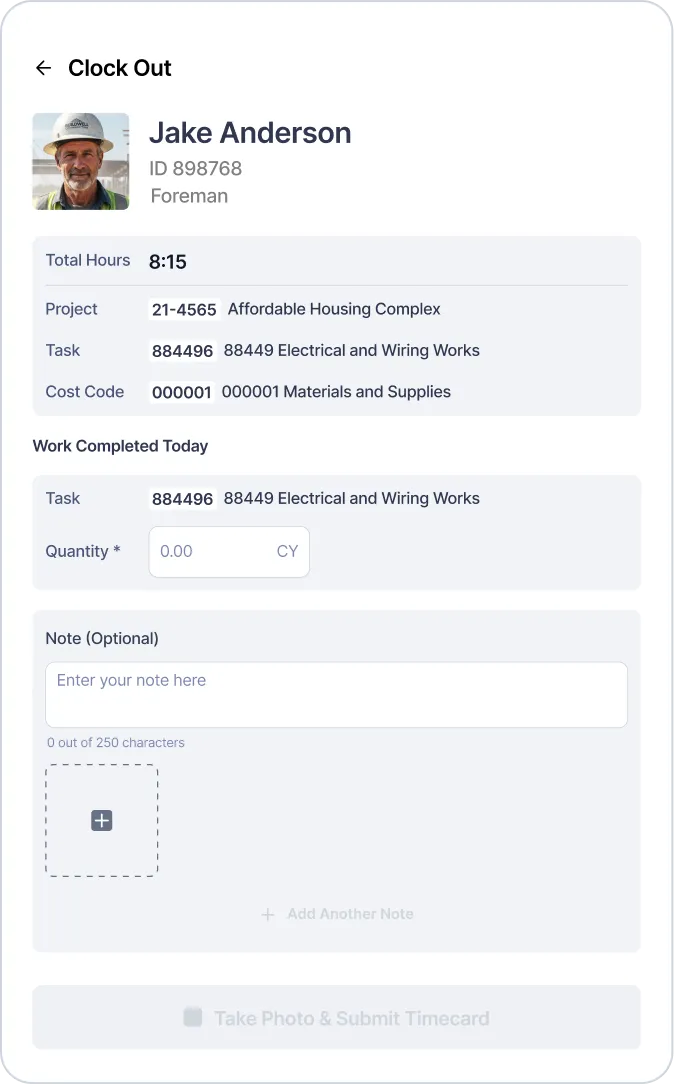
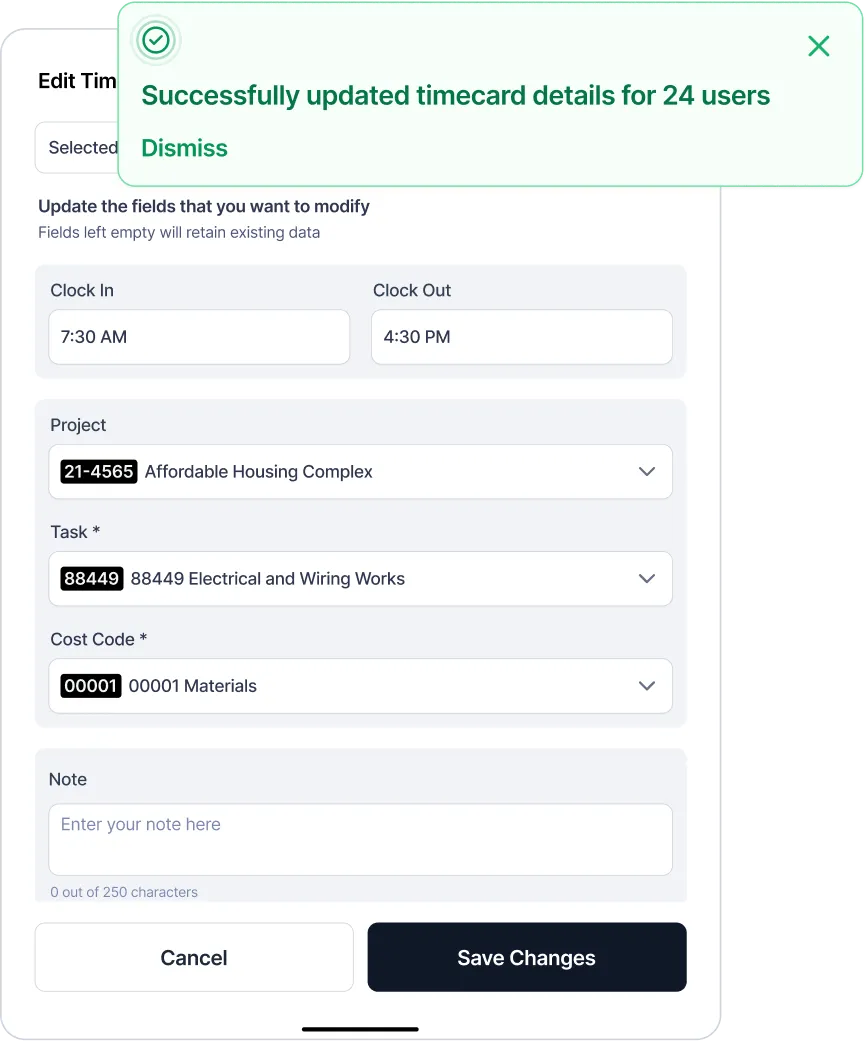
Foremen can clock themselves in and clock individual crew members in or out using a simple worker PIN. Lumber instantly identifies the worker, prompts project and task selection, and gets them on the clock quickly. Fields can be pre-filled to make repeat entries even quicker.
More Features
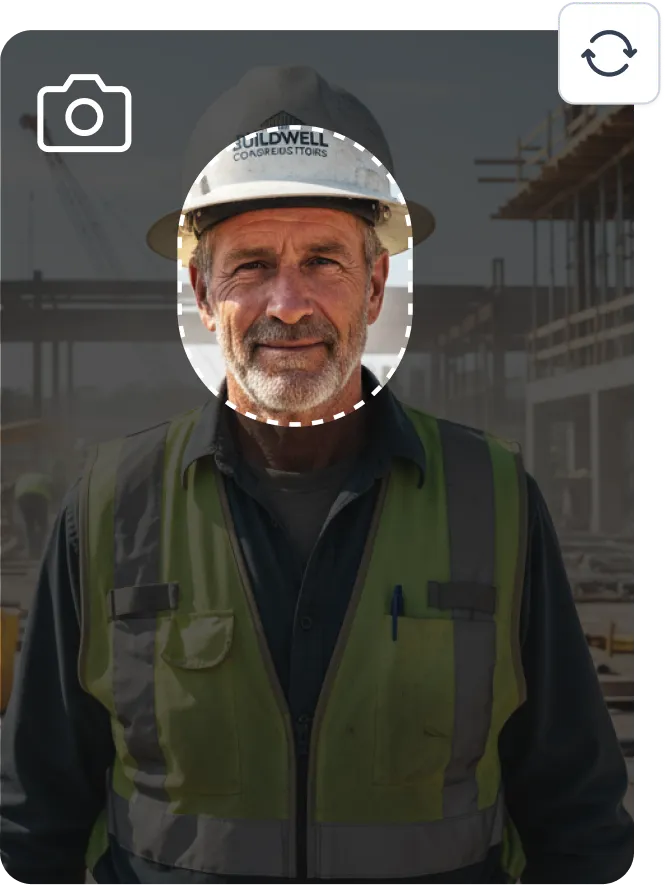
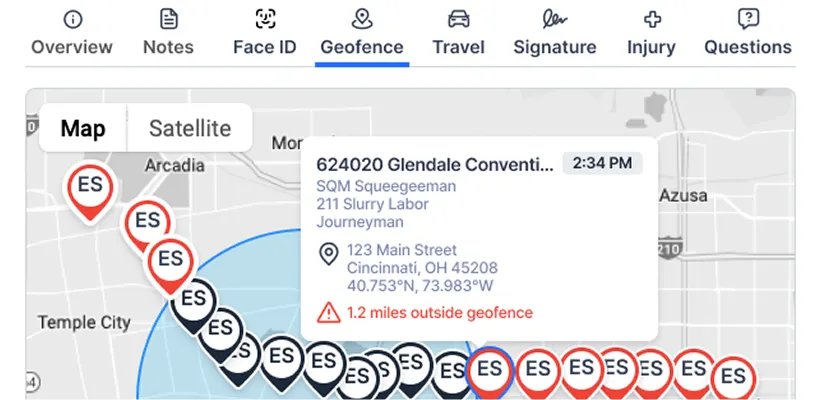
Geofencing & Photo Verification
Verify every punch with location and photo checks, eliminating buddy punching for good.
Offline Mode
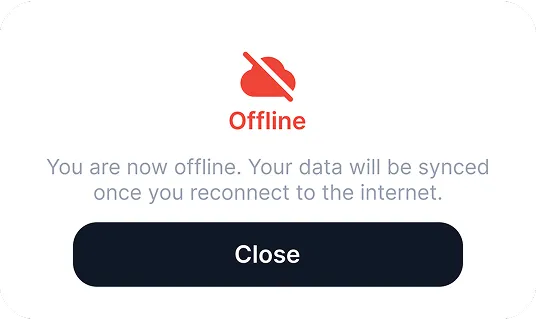
Capture time even without internet connection —sync automatically when back online.
Time Off Management
Submit, track, and approve PTO requests.

Meal Break Compliance
Track and enforce meal/rest breaks to stay compliant.

Crew Messaging
Instant messaging between field and back-office.

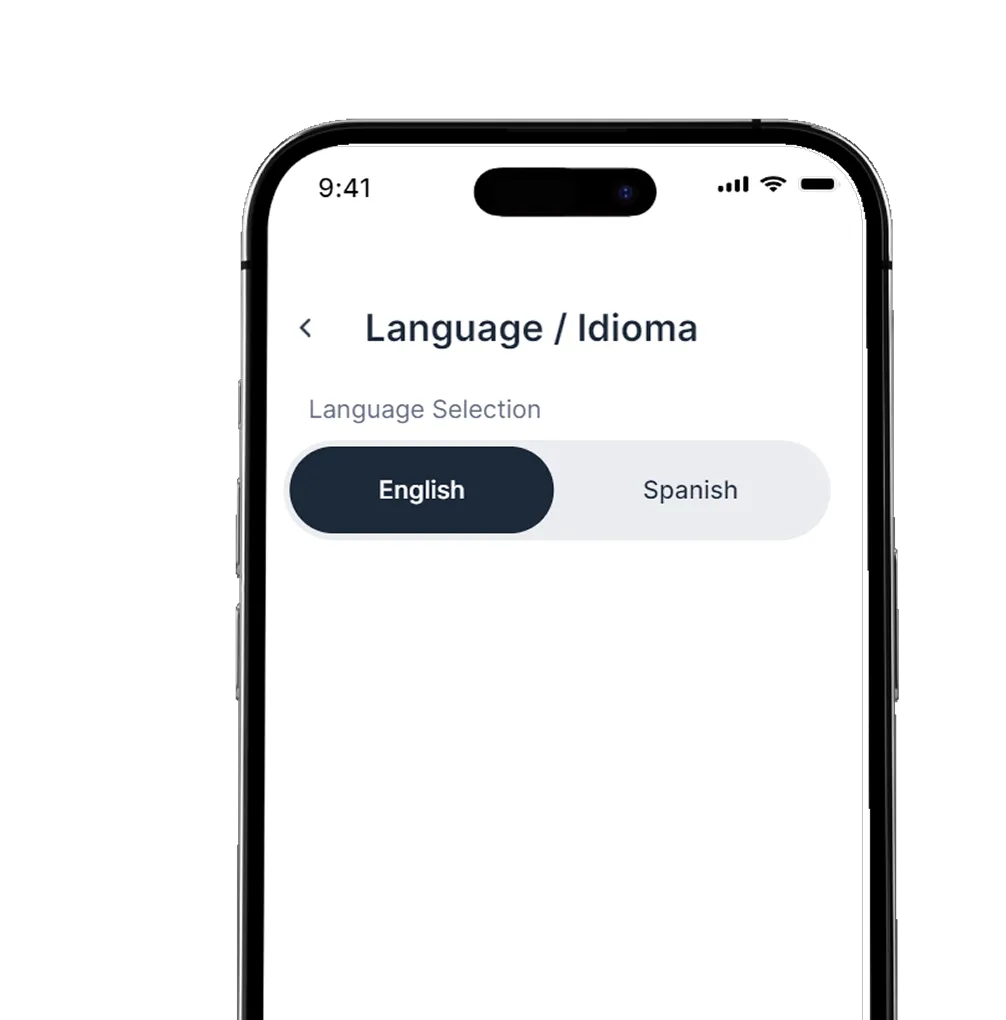
Multi Time Capture Modes
Clock in however you want—phone, tablet kiosk, desktop, or paper timecards.

Unlock the Full Power of Field Operations
Explore the full suite of features designed for the real work happening in the field.
Schedule & Dispatch
Schedule your teams with drag-and-drop simplicity. Assign workers based on skills, certifications, availability and proximity.
Equipment Tracking
Track equipment usage, location, maintenance, and assignments directly from the field.
Field Data Capture
Capture quantities and jobsite data once in the field and put it to work across your business and downstream workflows.
Job Costing
Connect time tracking and payroll data directly into job costing reports.
Recognition & Award
Keep crews engaged and motivated with real-time recognition for hard work and milestones on every job.



.webp)



Frequently Asked Questions



Still have questions?

